Asks before it changes anything
Allow once, for this chat, for an hour or always, or deny. Changes in Office arrive as tracked changes.
Desktop agent
Call it with a key or a click on the avatar. Share a window or select some text, and it reads what you show it, points at what to click, and hands the writing to Word, Excel or PowerPoint. Nothing changes until you say yes.
Coming soon

A hotkey or the avatar opens it over any app.
Only the window or text you choose, and only with Screen access on.
Opens your document and hands the change to the app's own assistant.
Every change waits for Allow. Your organisation decides which tools exist.
What it does
The desktop agent sits next to your apps. It can see what you share with it, and it uses the tools your organisation allows: the apps' own assistants, your files and the programs you connect.
Quick actions
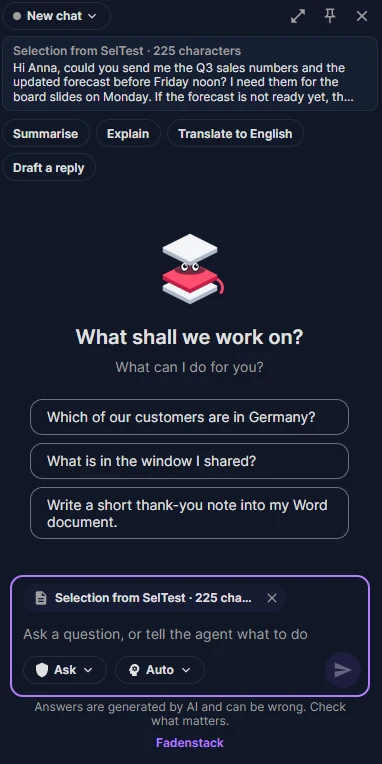
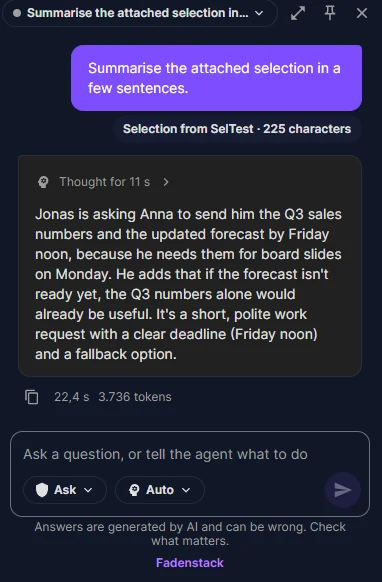
Select a paragraph in any app and press Ctrl+Alt+S. It lands in the chat as a chip, with one-click actions to summarise it, explain it, translate it or draft a reply.
Show me
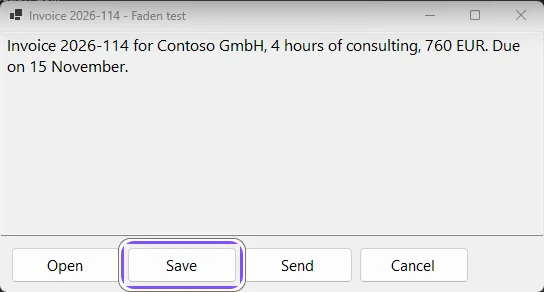
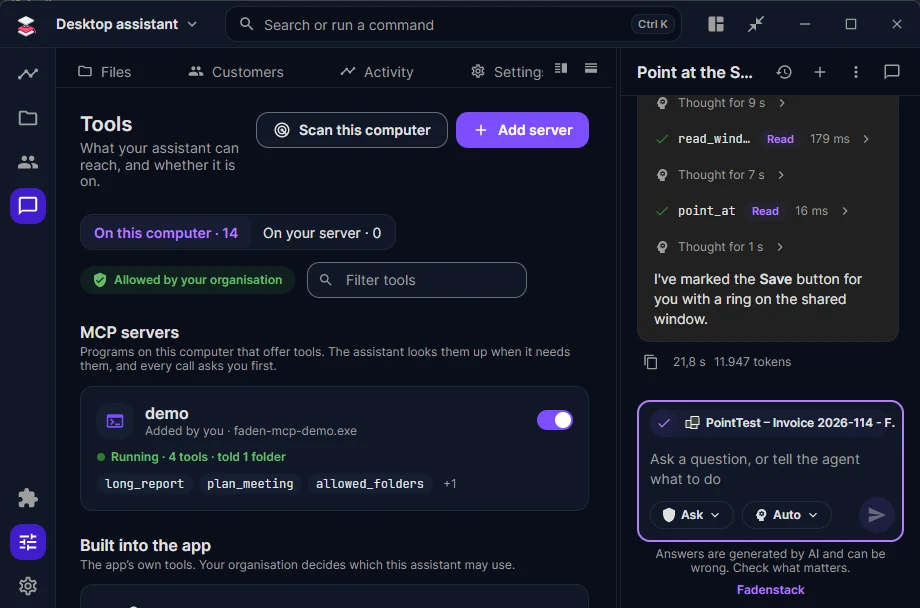
Share a window and ask how to do something. The agent reads the window's text and controls and puts a ring on the one to press. The ring follows the window and clears by itself.
Hand-over
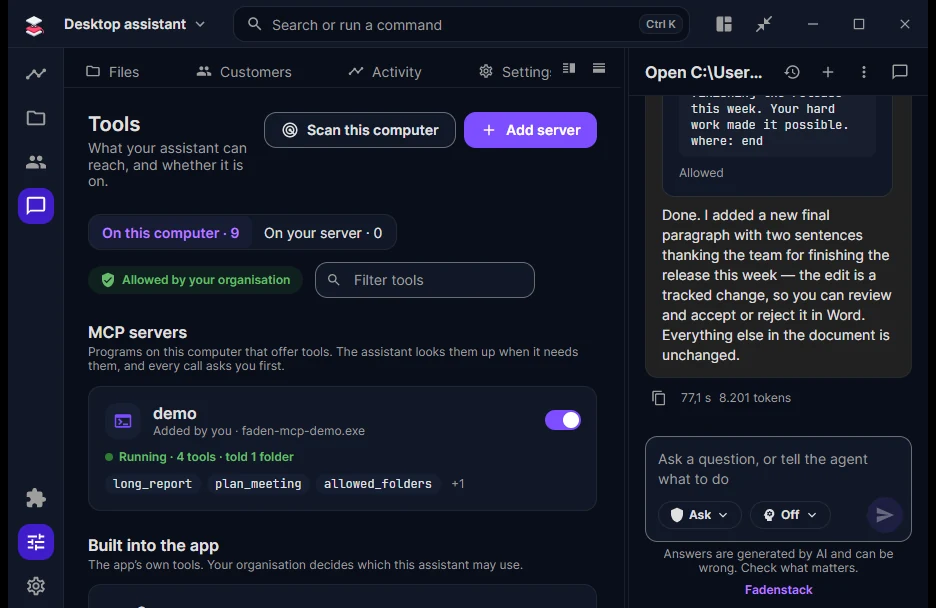
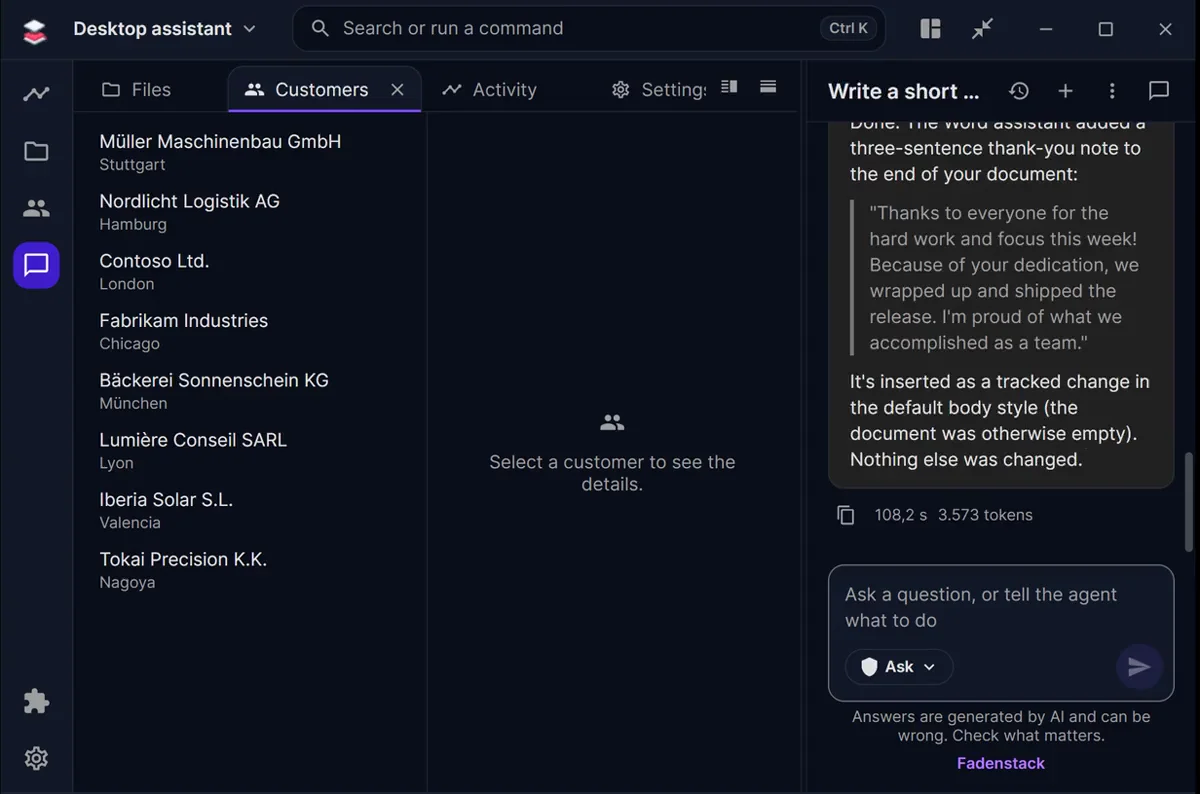
"Add two sentences to the team note": the agent opens the document, hands the task to the Word assistant and brings back its answer. The text arrives as a tracked change, after you allowed it.
Hand-over to Office needs Windows and the Microsoft 365 desktop apps.
Your tools
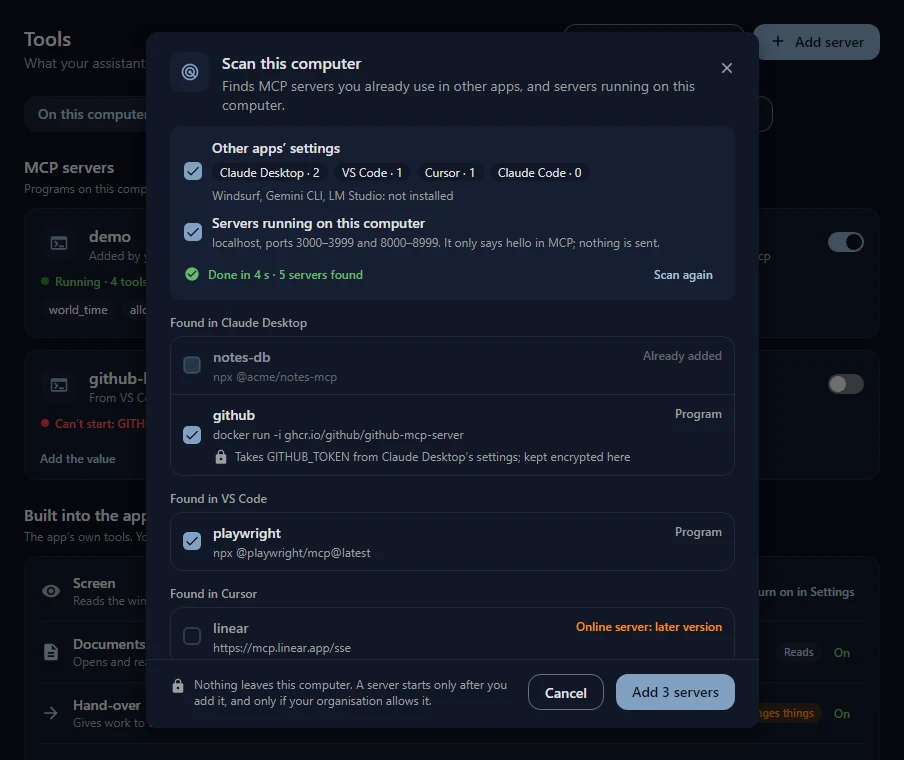
Add MCP servers that run on your computer, or let the scan find the ones you set up for Claude Desktop, VS Code or Cursor. The agent picks the tool it needs and asks before every call.
Your pace
Choose how long the agent thinks: Off for quick answers, longer for harder questions. Your choice is kept for you and this agent; your organisation can set a maximum.
See it work
The desktop agent opens the document, the Word assistant writes, and both ask before anything changes.
Safe by design
The agent works with what you allow, on the server your organisation runs. Nothing about it is hidden from IT.
Allow once, for this chat, for an hour or always, or deny. Changes in Office arrive as tracked changes.
Off until you switch it on. Then it sees only the window or text you share.
It reads files only in the folders you picked in Settings.
Your organisation decides who may use the agent, which model answers and which tools exist.
Chats and settings stay encrypted in your own user folder.
The agent's requests show up in your server's usage and audit log.
Download
Free to use. You sign in to your organisation's Fadenstack server.
The desktop agent is in preview. The download — Windows and Linux, no installation, clearly marked as a preview — arrives here shortly. Watch it work in the meantime.
Questions
Yes, the desktop agent is free to use. Its source code is not public. It talks to your organisation's Fadenstack server, never to us.
What you type and attach, and the text or picture of a window when you share it with Screen access on. It goes to your organisation's server and the model your organisation chose.
Previews are not signed yet, so SmartScreen does not know them. Choose More info, then Run anyway. Signed releases follow.
Not yet. Windows and Linux come first; macOS follows.
The desktop agent's preview arrives soon. Watch it work in the meantime.